

Storage analyzer for Mac
Find what's eating
your storage.
GhostSpace shows where your disk space went without uploading a byte of your file data. Pick a folder, see what's big, and decide what to move to Trash.
No account · No analytics · No network access
FEATURES
Everything you need to reclaim space
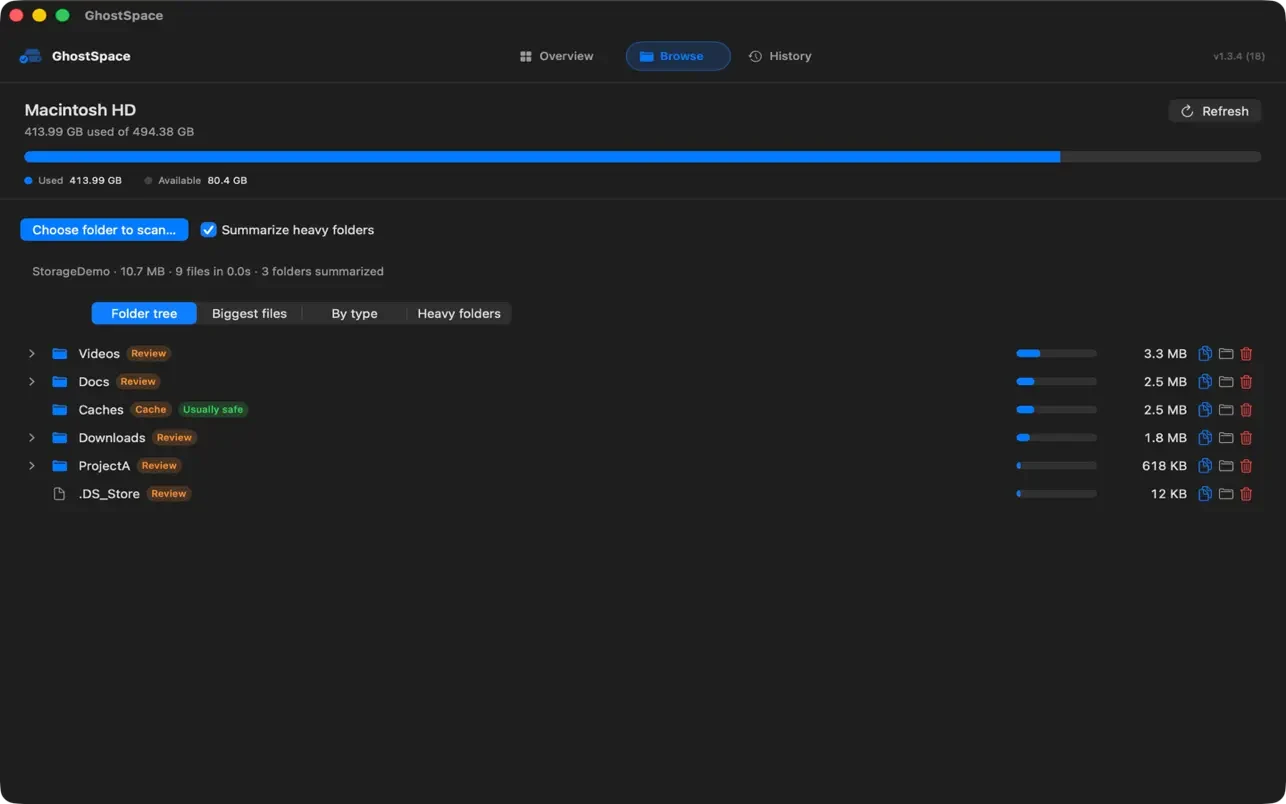
Folder sizes in a familiar tree
Expand folders like in Finder, sorted by how much space they take on disk.
The largest files
Jump straight to the biggest individual files instead of digging through folders.
Heavy folders, grouped
Dependency trees, app data and build caches such as node_modules are grouped, so scans finish sooner.
Filter by name or path
Narrow the heavy-folder list by name or by the full path.
Copy paths, reveal in Finder
Copy a path or open the item in Finder with one click.
Review before Trash
See the exact path before anything moves to Trash.
By type
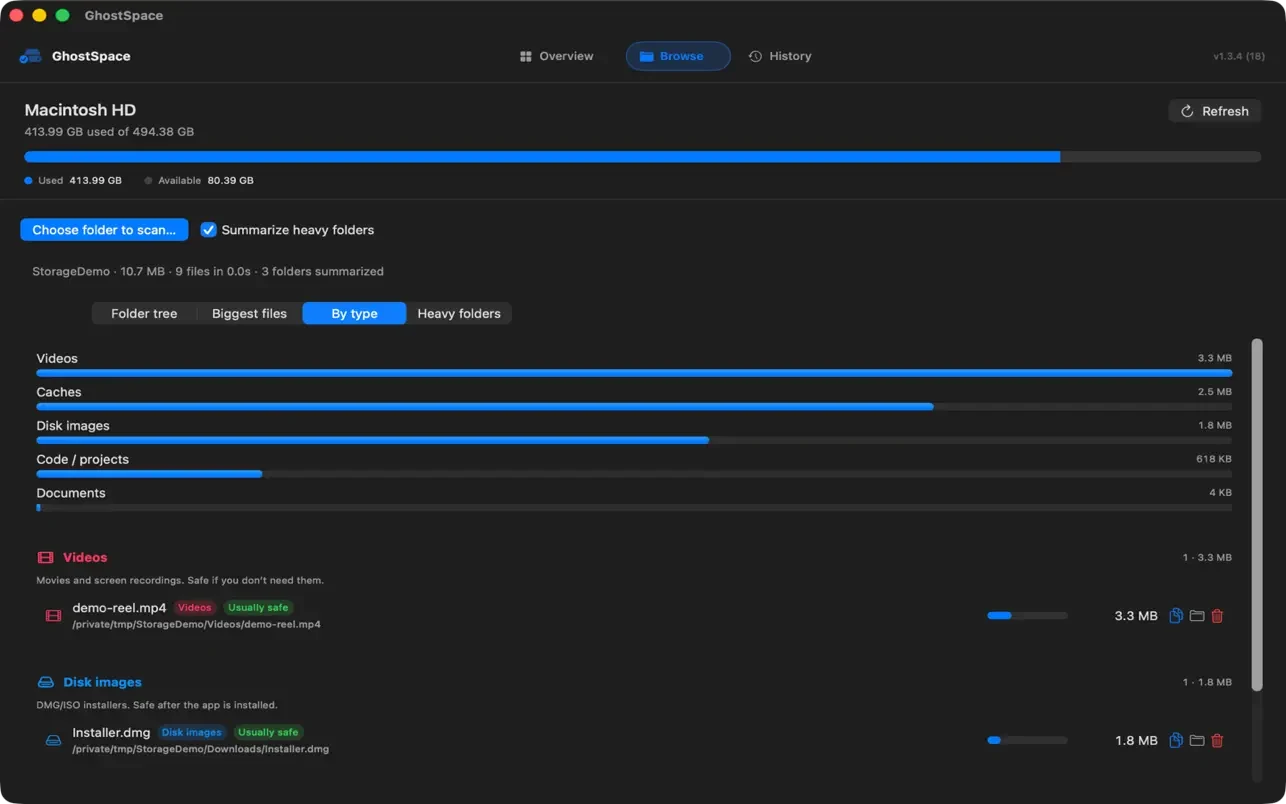
See it by kind of file
Switch to By type to see what your space is made of: videos, caches, disk images, code and projects, documents. Each group explains what the files are and whether they are usually safe to remove.
Your disk
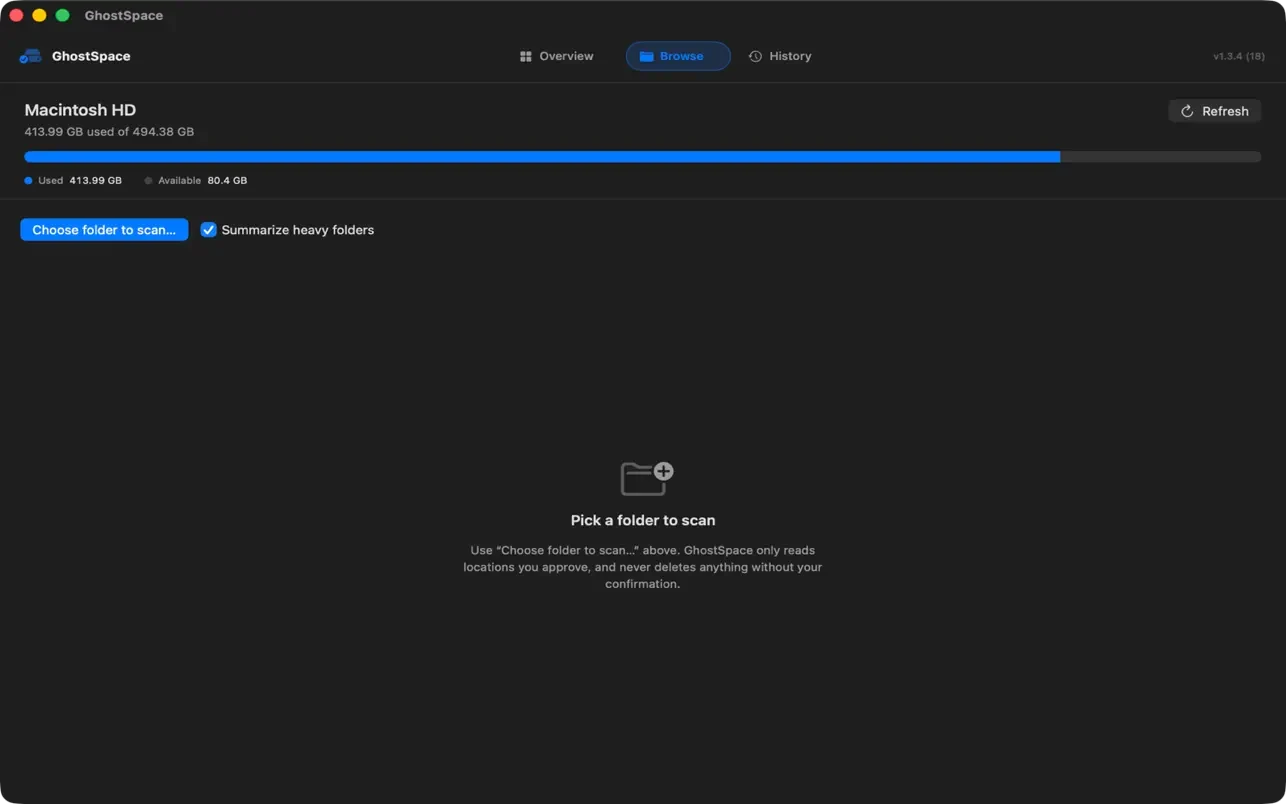
Start with the big picture
The Browse tab shows how full your disk is. Choose a folder to scan, with "Summarize heavy folders" on to keep scans quick.
PRIVACY BY DESIGN
Your files never leave your Mac
GhostSpace can only read folders you explicitly choose with the macOS folder picker. Scan results stay on your Mac. There is no account, no analytics, no tracking and no network access.
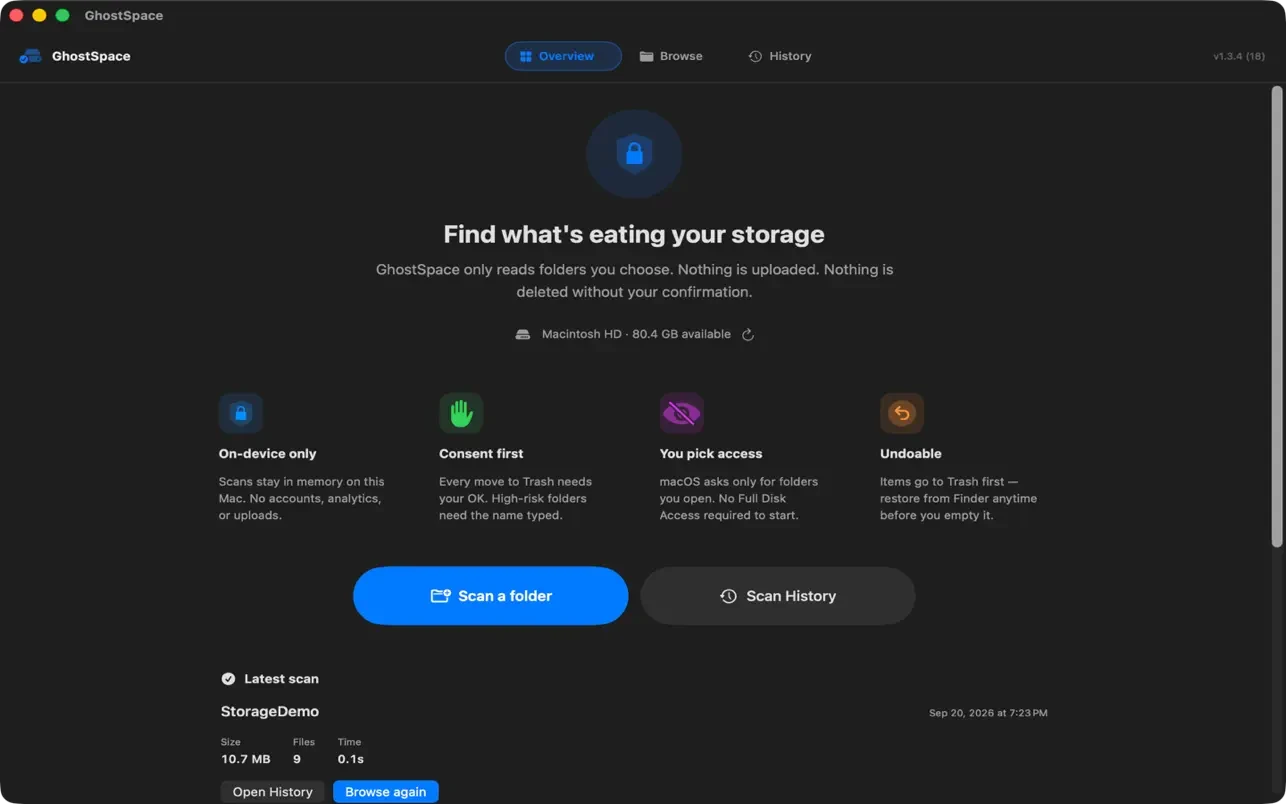
On-device only
Scans stay in memory on this Mac. No accounts, analytics or uploads.
Consent first
Every move to Trash needs your OK. High-risk folders need the name typed.
You pick access
macOS asks only for folders you open. No Full Disk Access required to start.
Undoable
Items go to Trash first. Restore from Finder anytime before you empty it.
See where your storage went.
Get GhostSpace on the Mac App Store and scan your first folder in a minute.
Download on theMac App Store